

I was working with a client recently who is from a very heavily regulated sector. When they present with PowerPoint, they are often asked to provide more data, which can, of course, detract from their message. They wanted a way to have the full data set available, as an appendix that they could display if asked.
The way to manage this in PowerPoint is to use a link to take you to the appendix slide, the one containing the full data, and to make life easy, a link to take you back to the original slide. This way, you can show the appendix slide if asked and if not, continue with the presentation.
Let’s take a look at how to set up links in PowerPoint. Firstly, we need something to apply the link to; in this case, we’ll use a text box. Insert a text box onto the slide, from the Insert tab and type Appendix 1 in the text box. Select the text box, then navigate to the Insert tab. Click on the Link drop-down menu.
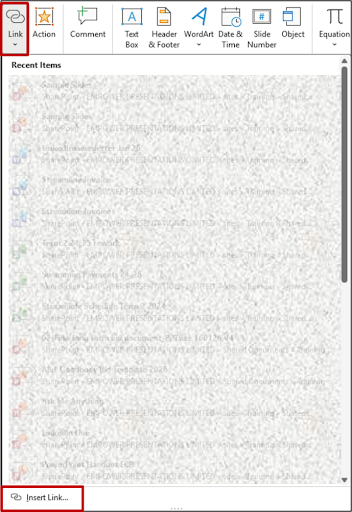
The drop-down menu shows a list of your recent files. We want to link to a slide, so we click the Insert link button at the bottom of the drop-down menu. The Insert Link window will open. Click on Place in This Document and then select your appendix slide. Click OK to save the link.
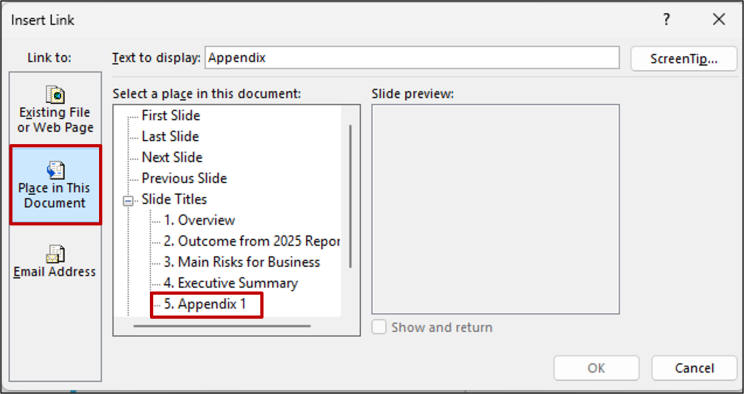
When using this feature, it’s a good idea to add another hyperlink to take you back to your original slide, so that you can continue with your presentation. I like to use a back button icon.
Go to your appendix slide, then click on the Insert menu and select Icons from the illustration menu.
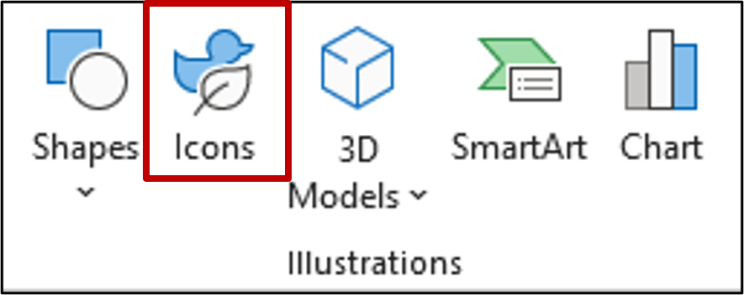
Search for “arrow” and choose an icon that represents a back button. Select the icon and go through the steps above to add a link back to the original slide. If you have more than one appendix for a slide, you can copy and paste the back button icon with the link onto the other appendix slides. If you have appendices for different slides, create a new back button and a link for each one.
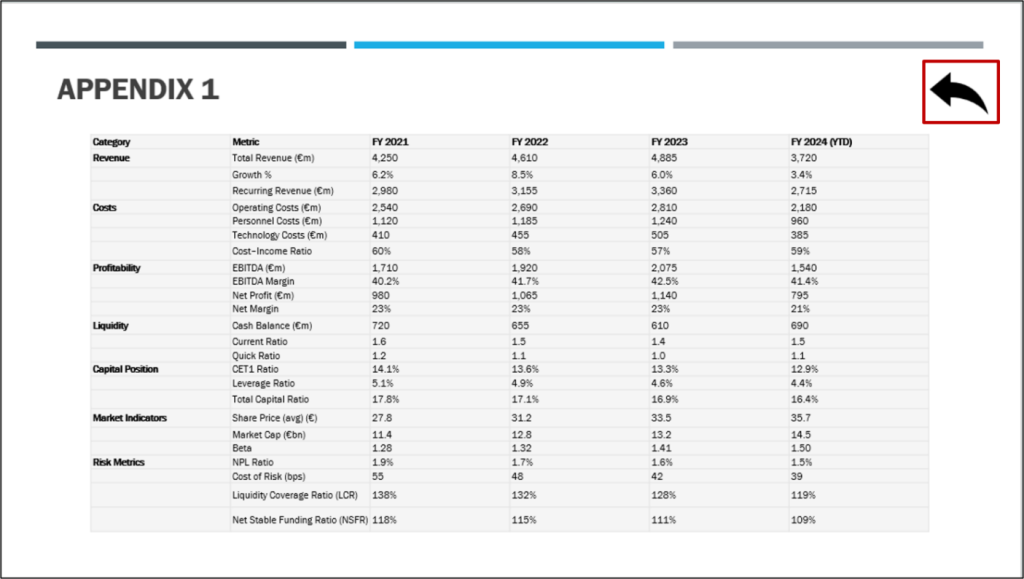
When you’re presenting, hover over your text box (or back button), and your mouse cursor will change to a hand icon, click and go straight to your linked slide.
Need Help Training Your Team?
If you’d like support with Microsoft Office training, please reach out via my Microsoft Bookings page to arrange a chat 👇
Book time with Fiona Walsh: Discovery Call
Thank you for reading this article. I’d love to know if this method works for you!
#PowerPoint #Branding #BusinessBranding #PowerPointTraining #PresentationTraining #PassionateAboutPowerPoint #PowerPointTipsAndTricks