

Well, how about using Microsoft Forms? With Microsoft Forms you can easily integrate live feedback into your PowerPoint presentations. Forms are available for Microsoft 365 business and education accounts.
Create a new slide in PowerPoint go to the Insert tab and click on forms. The forms sidebar will open. If you have created forms before you will see them listed here if it’s your first time the sidebar will be blank.

Forms is located on the Insert tab in PowerPoint
Click the new form and you will be taken to Microsoft Forms in your default web browser. The new Form will be untitled. Give the Form a name and add a description to encourage more response from your audience. You can add one or more questions by clicking on the Add New icon. There are assorted options such as choice, text, rating, date, and a drop-down menu that includes a few more options. I like the choice option, as it’s easy for the audience to answer.
Click on Choice, and you’ll see the first question. Type your question and click into the text for Option 1. Here you can add the text for the first choice, e.g. Yes. Change the text for Option 2, this could be No. To add another option, click the Add option button. You may see a suggested choice, for example, if you type Yes in option 1, you will see a suggestion to enter No for option 2.

A completed question in Microsoft Forms
There are a couple of settings on this screen, Multiple answers, where a respondent can answer more than once and Required meaning that the respondent must answer the question. There are 3 dots to the right of these buttons which give you the option to shuffle questions, i.e. have them in a random order, have the question options as drop-down menus, have subtitles and add branching, which means you can specify which question a respondent will see next, based on their previous answer.
Click the Add new button to add a second question and follow the steps above.
Now click on the three dots at the top right of the window and click Settings.

Microsoft Forms settings
There are various options here including:
Who can fill in this form – select Anyone can respond, to allow people outside of your organisation to take part.
Options for responses – if you are presenting within a PowerPoint presentation you don’t have to change these settings.
Response receipts – if you are presenting within a PowerPoint presentation you don’t have to change these settings.
Close the browser window to navigate back to your PowerPoint file. The Form has been inserted on the slide. Click Present for Interactive meetings and your slide will be ready to present. Collect responses offline will allow you to gather responses before the presentation.
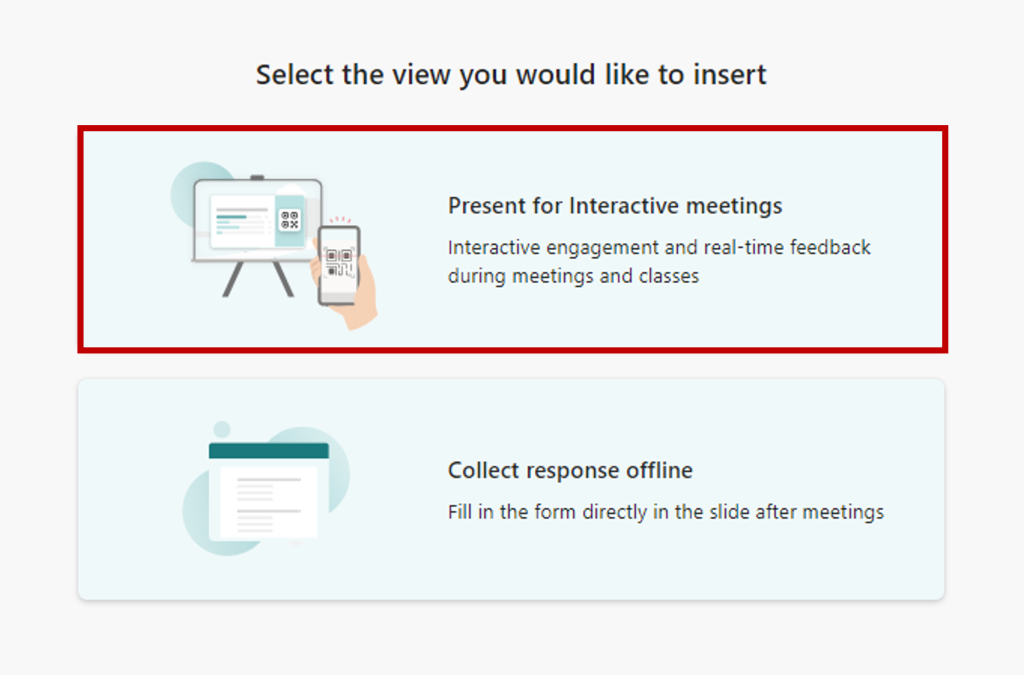
Choose how you want to manage your form in the presentation
When you are in Slide show mode your Form will have a QR code for your audience to scan with their mobile phones. There is also a link that you can copy, by clicking on the Copy link button. The link can be shared before the presentation or via the chat function for online presentations. Once your audience has had time to respond, you can minimise the instructions, by clicking on the two arrows at the top right of the instructions pane. Show the QR code and link again by clicking on the QR code icon in the bottom left corner.
You will see the number of responses in the top right corner, allowing you to decide when you have enough responses.
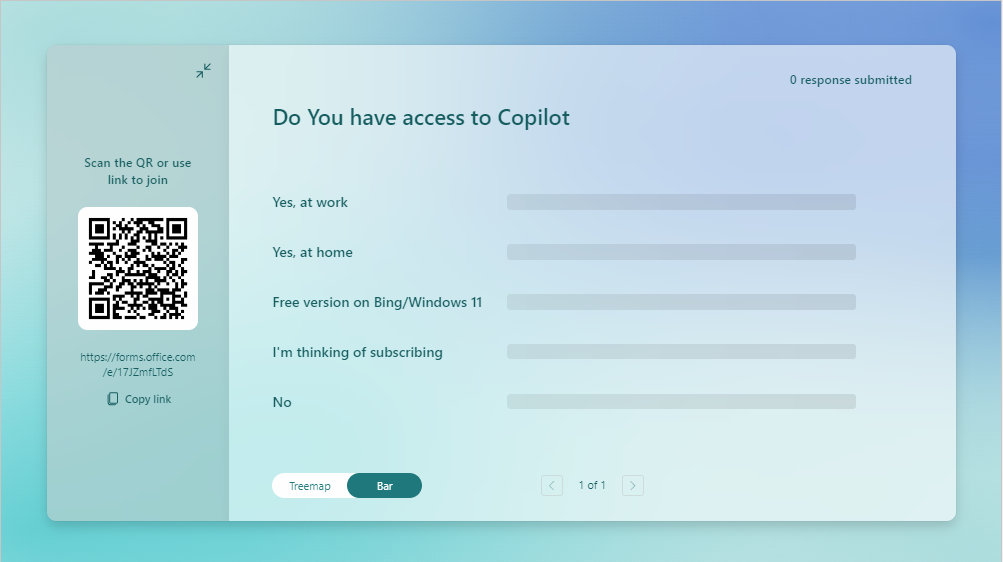
A Form in a presentation ready for people to respond
There are two options for viewing the results, Treemap and Bar. If you have more questions, there are arrows at the bottom of the window where you can scroll through to see the results for the different questions.
Make sure you have access to your mouse, or your mouse pad on your laptop, as you will need to navigate around the screen to display the results.
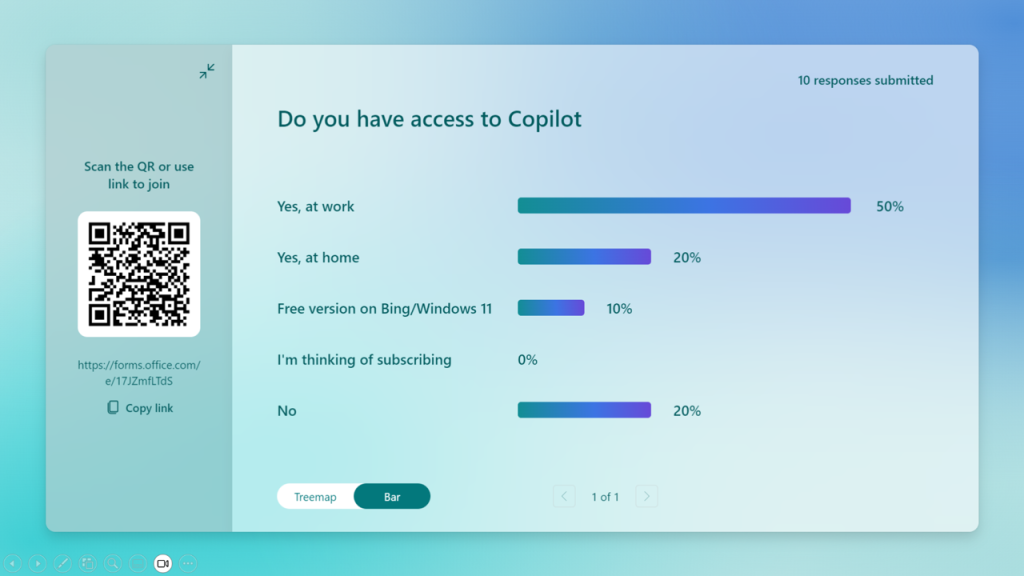
The results are viewed in PowerPoint
When you are ready to move to the next slide, either use the Presenter View, the left and right arrows or the return key on your keyboard or use the semi-transparent buttons in the bottom left of the slideshow. If you are used to clicking your mouse to go to the next slide, this may not work, as you have clicked on the slide to control the Form. My top tip is to practice in advance so that you are comfortable managing the Form in your presentation.
Thank you for reading this article. I’d love to hear your feedback on using Forms in presentations. If you need any assistance with PowerPoint and presentation training within your organisation, please reach out!
#PowerPointTraining #PowerPointTrainer #CertifiedMicrosoftMasterTrainer #PassionateAboutPowerPoint #PresentationTraining