


A theme in PowerPoint is a predefined set of colours, fonts and visual effects that can be saved and applied to other PowerPoint files for a consistent on brand look and feel. The theme is linked to your organisation’s PowerPoint template. When you add content to your slides, for example, shapes, tables and charts or SmartArt, the theme colours will be applied.
There is a possibility to save the theme colours and to save the entire theme. The Theme Colours can be applied to other 365 files, for example an Excel file, to ensure brand consistency across your documents. If you were to apply the theme to an Excel file, in addition to your colours, the file will also pick up the theme fonts, which may not be easy to read in Excel. For more info on Theme Colours take a look at my last newsletter .
In this article we will explore how to save a theme to apply it to another PowerPoint file or start a new presentation.

Choose Save Current Theme from the Themes window.

Enter a name for your theme in the File name field. Leave the Save as type as Office Theme, and do not change the file location – the default is on the C drive. Click Save.
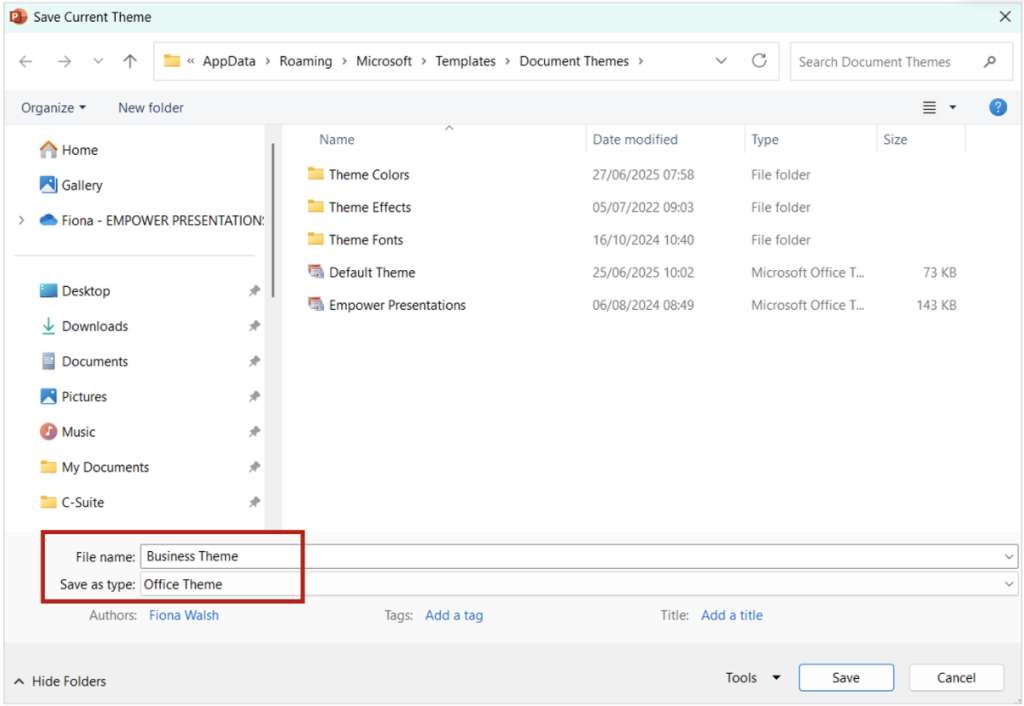
Click on the Themes drop-down menu again and hover your mouse over your saved theme. This will likely be in the Custom section to the far left. When you hover your mouse over the theme you will see the theme name pop up, to check it’s the theme you just saved. This action will save the colour palette, fonts, effects and the slides layouts.

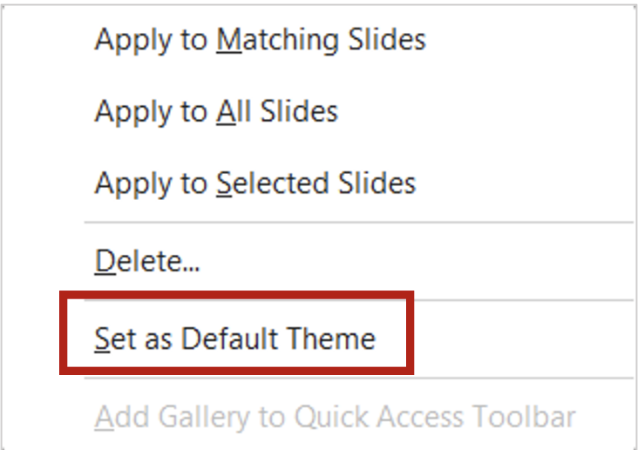
Next, right click the theme and choose Set as Default Theme.
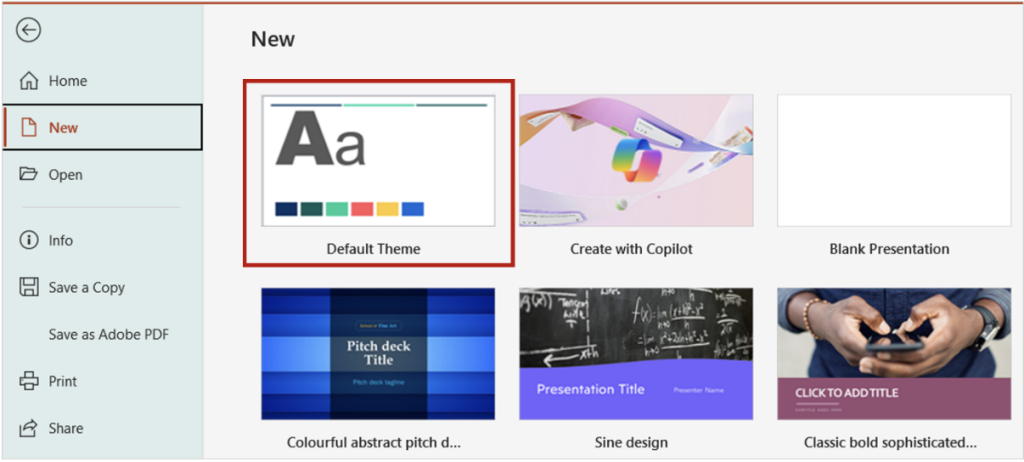
When you go to the File tab and choose New, you can open a blank presentation with your saved theme – it will be shown as the Default Theme.
If you open an existing presentation with a different theme, you can apply your saved theme to the presentation. Go to the Design tab and click on your saved theme. Your slides will pick up the new colour palette, fonts and effects from your new theme.
There is one caveat though, the new colour theme will only be noticeable if the original slides used theme colours. If objects on slides were created using standard or custom colours you won’t see any colour changes!
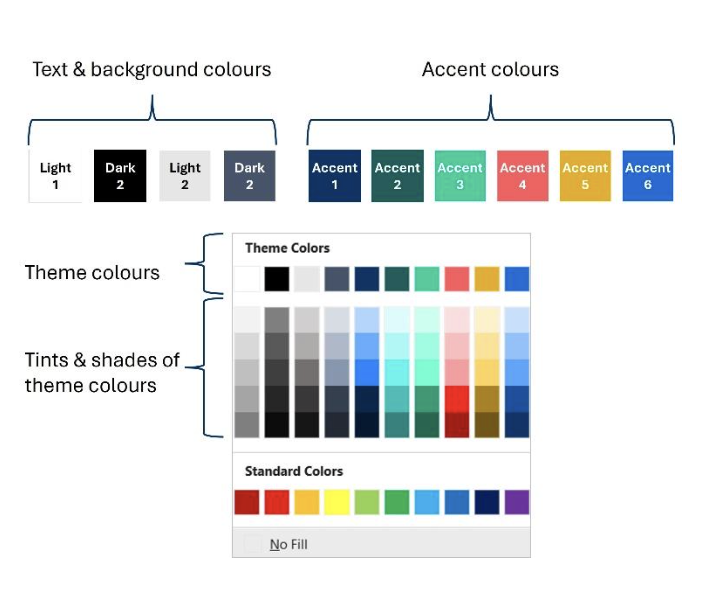
You can apply your theme to Word and Excel files, which will apply the colours and fonts. Beware, as the font choice in your PowerPoint theme may not work well in a document or spreadsheet.
In Word, go to the Design tab, and click on the Themes drop-down menu to the far left of the ribbon. You will see your saved theme under the Custom themes. Click the theme to apply it to your document.
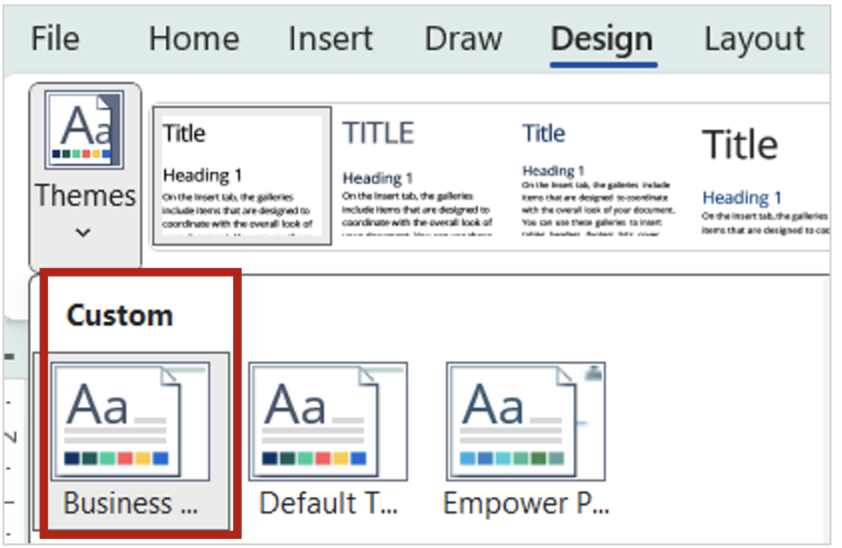
In Excel, click the Page Layout tab, and click on the Themes drop-down menu to the far left of the ribbon. You will see your saved theme under the Custom themes. Click the theme to apply it to your document.