

You’ve searched Microsoft Stock Images, and you cannot find the image you are looking for. Do not worry, Copilot can help you, even if you don’t have a Premium (paid) licence.
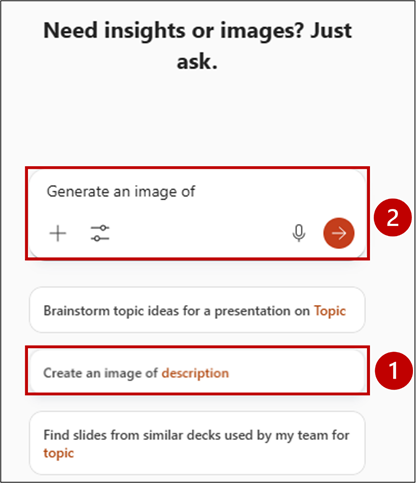
With a Premium account, you can open the Copilot pane in PowerPoint, and one of the prompts you will see is “Create an image of description.” Click on the prompt and in the chat pane, describe your image.
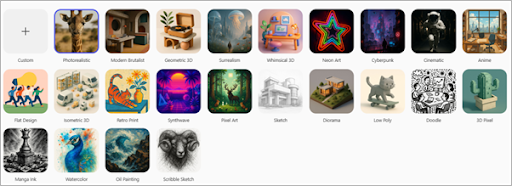
Be as descriptive as possible, and don’t forget to include the image style you would like. Here are the image style options.
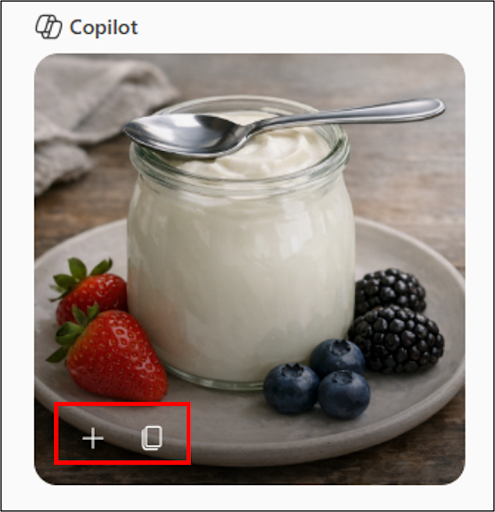
Here is an example of a descriptive prompt and the resulting image.
Create a photorealistic picture of a jar of natural yoghurt with a spoon resting on the top, ready to eat, standing on a plate with a few berries around the plate

Surprisingly good, don’t you agree?
To add the image to your slide, hover over the image with your mouse, and you will see two options in the bottom left corner: the + icon inserts the image into your slide, and the other icon copies it, for you to paste elsewhere.
If required, you can upload an image as a starting point by clicking on the + icon when you start your prompt. Then navigate to your image and type in your prompt.
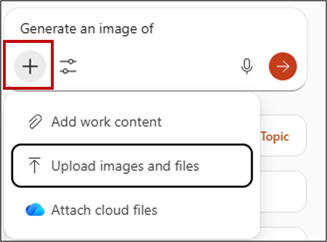
I added a picture of myself speaking at a conference and used the following prompt.
Change the image to an anime style and make the background more like a stage
The picture on the left is the one that I uploaded, and on the right is Copilot’s response.

If you don’t have a Premium Copilot account, don’t worry, you can still create images. If you log into your Microsoft account via a web browser at www.office.com
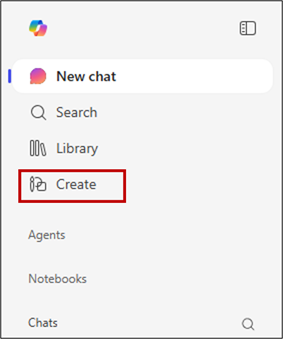
On the left-hand Navigation Bar, click Create.
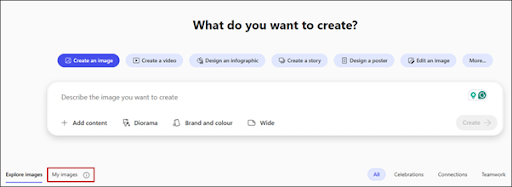
You now have the option to create an image and specify the style, colour, and size of the output in addition to uploading an image as a starting point.
You’ll also see other “create” options, for example, create a video, design an infographic, create a story, design a poster, edit an image and lots more!
And if you want to find an image you created previously, click on the “My images” button to see your image history, which includes those created in PowerPoint.
Need Help Training Your Team?
If you’d like support with PowerPoint or Copilot training, please reach out via my Microsoft Bookings page to arrange a chat 👇
Book time with Fiona Walsh: Discovery Call
Thank you for reading this article. I’d love to know if you create images for your presentations with Copilot!