


There are great tools directly in PowerPoint for taking screen captures for your slides.
Let’s start by taking a screenshot from within PowerPoint. On the Insert tab, you’ll find the Screenshot dropdown menu in the Images group of the ribbon.
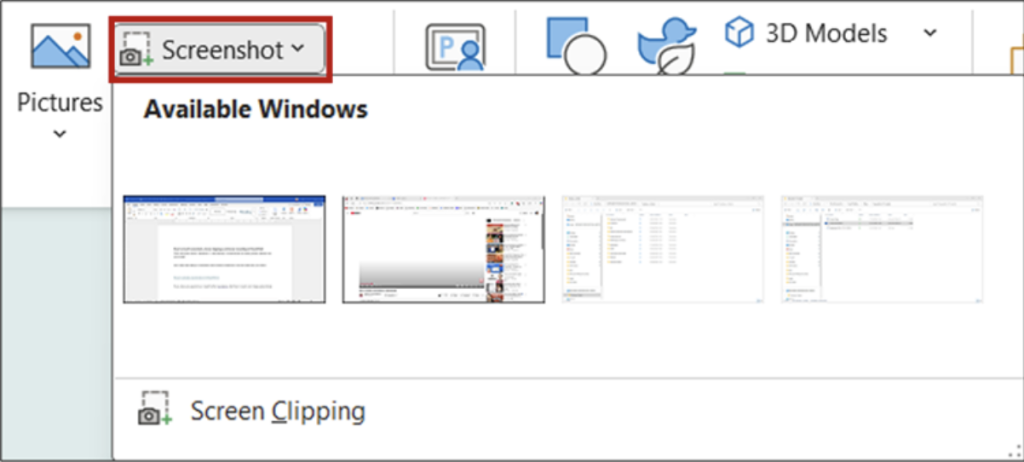
The Screenshot button on the Insert Tab
When you click on the dropdown menu there is an option to choose an Available Window, which will add a screenshot of the entire window onto your slide. Alternatively, you can click Screen Clipping and PowerPoint will minimise down, and you can select what you want from the window which is displayed behind PowerPoint, by clicking and dragging with your mouse.
Here’s a YouTube video showing you how to use the Screenshot tool in PowerPoint;
The Screen Recording tool allows you to insert a video of your screen, which is perfect for including a software demonstration in your slides. The Screen Recording tool is found on the Insert tab under the Media section of the ribbon, over to the right-hand side.

The Screen Recording button on the Media section of the ribbon
Click on the Screen Recording button and PowerPoint will minimise down to show the window behind. You can select the area you want to record and choose to record the audio or your mouse pointer.
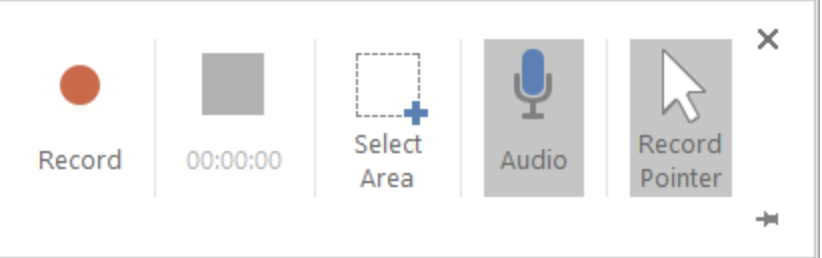
The Record Screen dock in PowerPoint
Hit the Record button and get a 3-second countdown before the recording starts. When you stop the recording, it will go straight onto your PowerPoint slide.
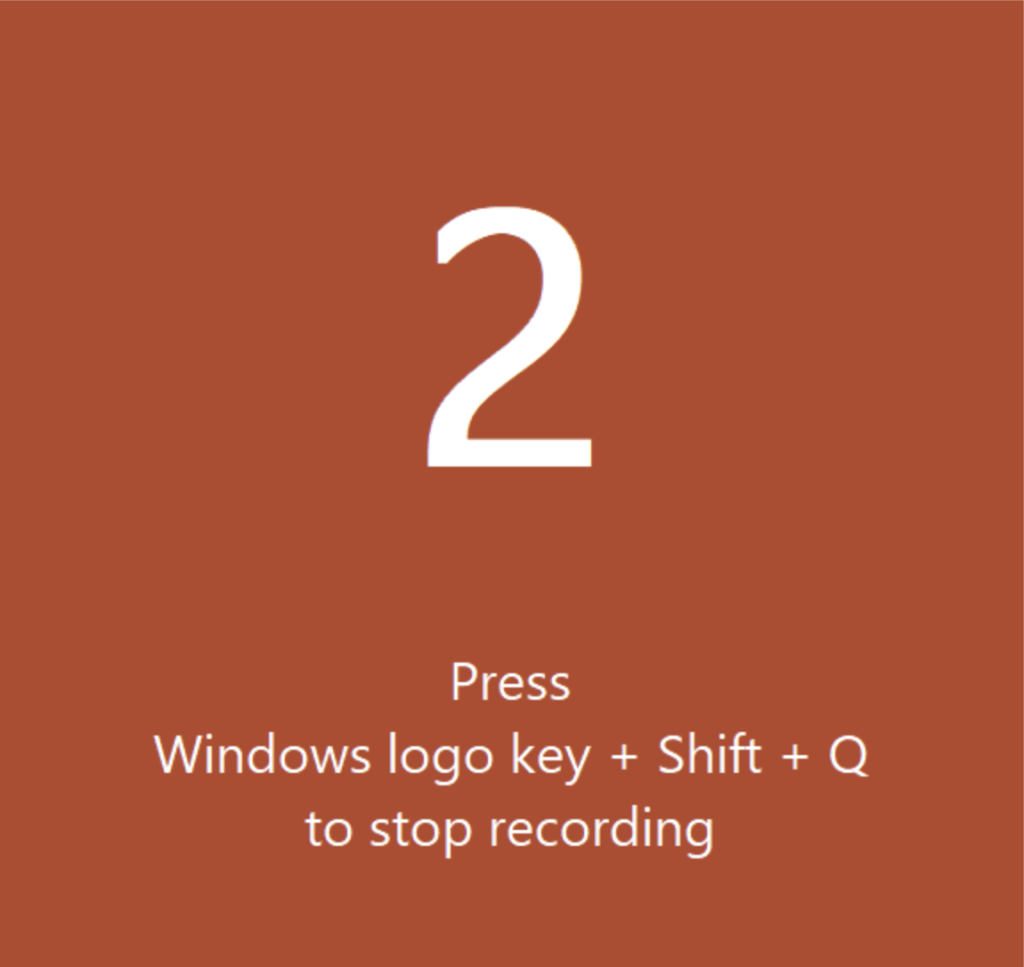
The countdown before the screen recording starts
When using video on slides, I like to set them to play automatically so there is no fumbling around to get them to play during your slide show. Below is a YouTube video showing the full functionality of the Screen Recording tool.
Thank you for reading this article. I’d love to know if you already use these features, and if you need assistance with PowerPoint training for your team, please get in touch via my Microsoft bookings page;