


Have you noticed a change to the Snipping Tool in Windows 11? The Snipping Tool now automatically captures drop-down menus! This update makes it easier to take screenshots of drop-down menus without any hassle.
Using the Snipping Tool to capture a drop-down menu
- Press Shift + Windows + S to open the Snipping Tool
- Click on the drop-down menu you want to capture
- Drag your cursor over the drop-down menu to take the screenshot
If the automatic drop-down capture doesn’t work for you, then you can use the delay feature instead.
Using the Delay Snip Feature
- Open the Snipping Tool
- Click on the Delay Snip icon (stopwatch icon), which is greyed out when
- using screen recording mode

The Delay Snip icon in Windows 11 Snipping Tool
- Choose a delay option (No delay, 3, 5, or 10 seconds)
- Click New and open the drop-down menu before the screenshot is taken

The delay options for capturing a screenshot in Windows 11 Snipping Tool
Here’s a video demonstrating these tools.
Additional Tips
I have my Snipping Tool pinned to the Taskbar, so that it’s always to hand. To do this, search for the Snipping Tool and once open, right click on the Snipping Tool icon in your Taskbar and choose Pin to Taskbar from the menu.
You can choose to snip a rectangle, window, full screen or freeform shape by clicking on the Snipping Mode icon.

Snipping Mode icon in Windows 11 Snipping Tool
You can choose to record screen (video) instead of a screenshot by clicking on the Video icon.
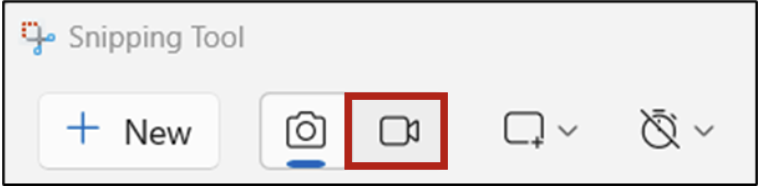
Record screen icon in Windows 11 Snipping Tool
Snipping Tool Settings
There are lots of handy settings for the Snipping Tool, such as:
- Automatically copying screenshots, or screen recordings, to the clipboard
- Automatically saving screenshots, or screen recordings, to your computer, and you can choose where they are saved
- Adding a border to every screenshot
- Automatically include microphone and/or system audio when screen recording
- Set the Print Screen key on your keyboard to open the Snipping Tool, ready to snip.
To find these settings, click on the 3 dots at the top right-hand corner of the Snipping Tool window, and click Settings.

How to find the Snipping Tool settings menu
Now you have everything you need to add screen recordings and screenshots to your PowerPoint presentations!
Thank you for reading this article. I’d love to know if you already use the Snipping Tool, and if you need assistance with PowerPoint training for your team, please get in touch via my Microsoft bookings page: