

Microsoft applications feature the Quick Access Toolbar, a space where you can pin frequently used tools for easy access. Customising this toolbar can save time and reduce repetitive strain, especially for those who work extensively in PowerPoint, Word, Excel, or classic Outlook.
What is the Quick Access Toolbar?
The QAT is typically located at the top of your PowerPoint window, displaying default commands such as New Document, Save, and Print. You can add commands that you use regularly so that you don’t have to go to different tabs every time you need to perform a specific task.
How to Customise Your QAT
There are two main ways to modify your Quick Access Toolbar:Using the drop-down arrow: Click the small down arrow next to the QAT to access customisation options. Here, you can add standard commands, like New, Open, Save and Quick Print. These options are consistent across Excel, Word, and classic Outlook.
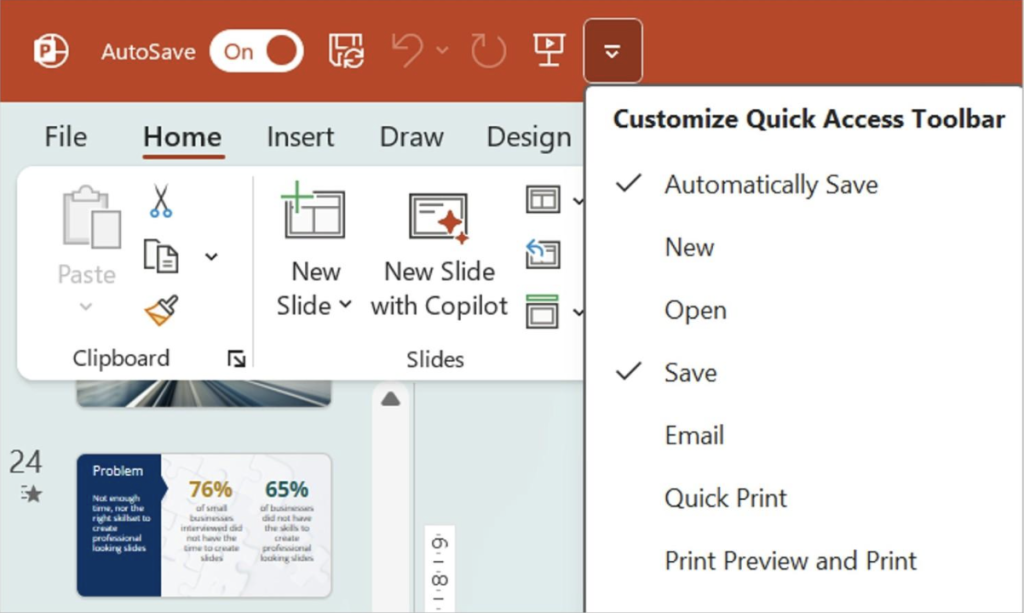
The Quick Access Tool drop-down menu
From the File menu – alternatively, navigate via File > Options > Quick Access Toolbar to see the full options available on the QAT.
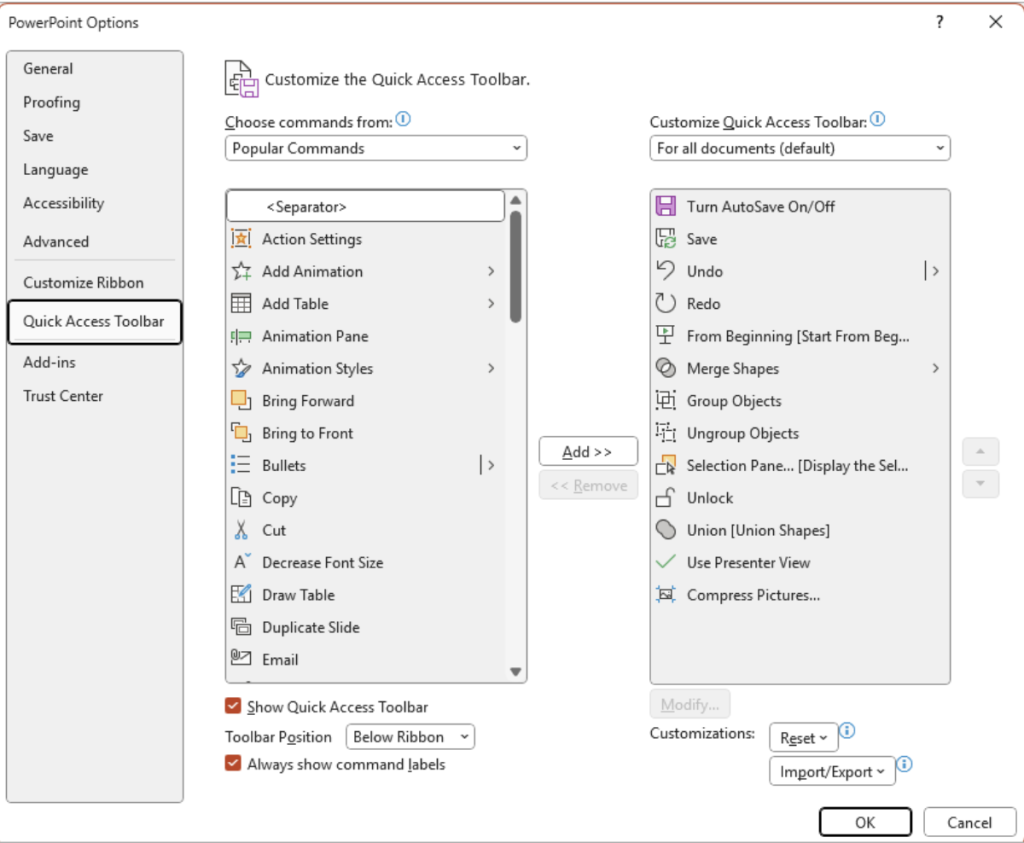
The Quick Access Toolbar from the File menu
To add more commands, click on the Choose commands from drop-down menu. You can browse Popular Commands or search for specific ones by tab (e.g., Print Preview). You can also view All Commands – there are thousands, so you’re sure to find what you need here!
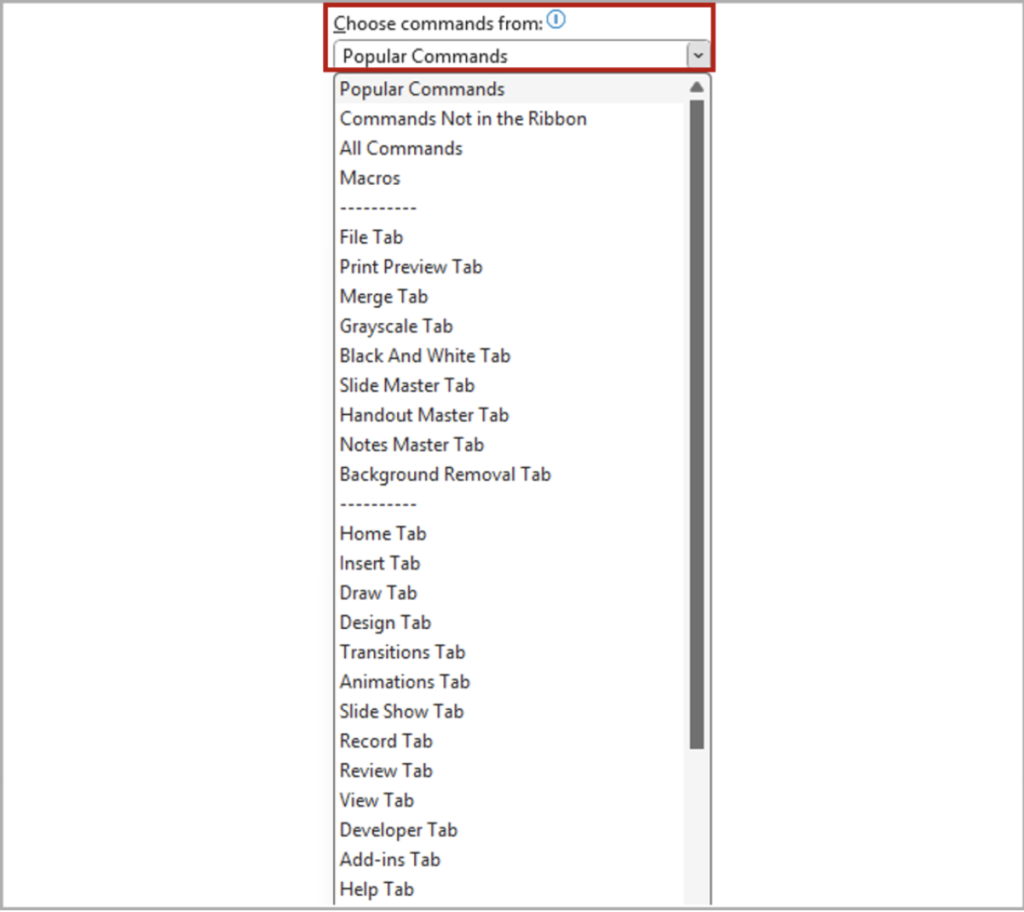
Choose commands from drop-down menu
Adding and Arranging Tools
To add a command:
- Select the command, for example the Animation Pane.
- Click Add to include it on your QAT.
Rearrange commands to group similar tool together for efficiency, by clicking on the arrows to the right hand side. For example, Group Objects and Ungroup Objects
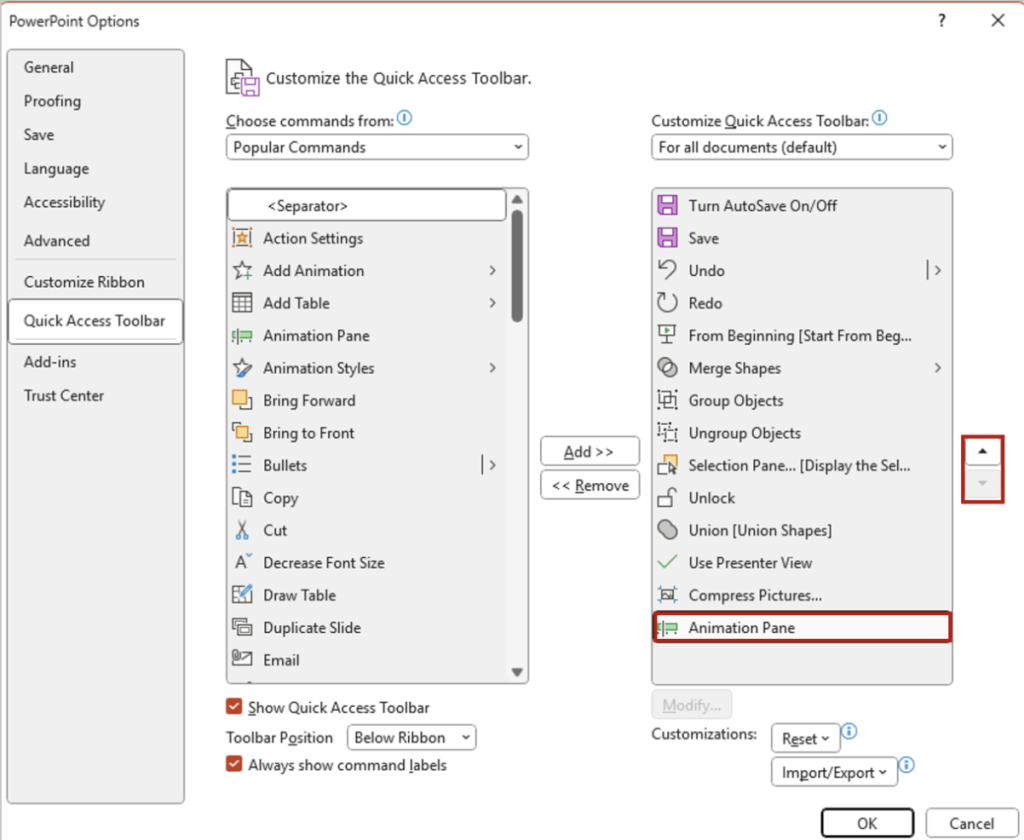
Change the order of commands with the arrows
Above or Below the Ribbon
You can choose where the QAT is situated in PowerPoint, either above or below the Ribbon. I prefer to have mine below the Ribbon, as it’s less distance to move my mouse when working in PowerPoint. Take a look at the options at the bottom of the QAT PowerPoint Options to change the location.
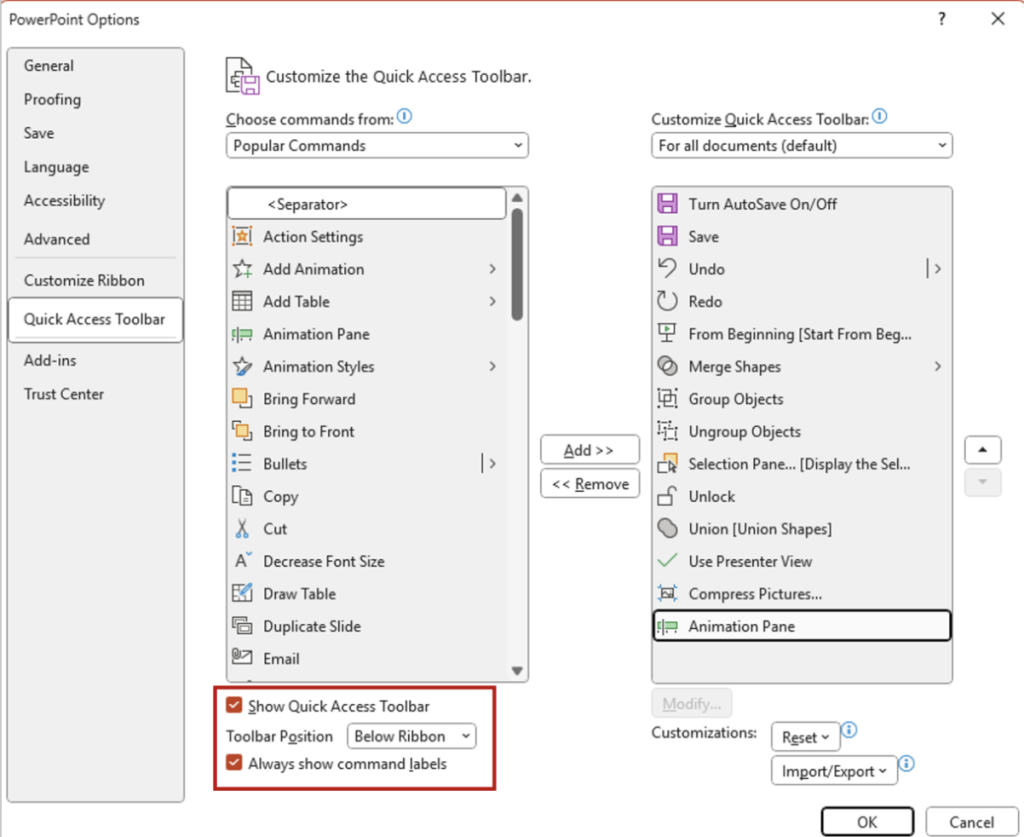
Options for the QAT – above or below the Ribbon
Video Demonstration
Here’s a video showing you how to you the QAT 👇
Favourite Tools
Some of my favourite tools include:
- Eyedropper Fill: Match shapes to colours from images.
- Eyedropper Recolour: Instantly recolour pictures to match your theme.
Why Customise?
Customising your QAT across Microsoft Office applications streamlines your workflow and minimises mouse movement, helping to reduce repetitive strain.
Need Help Training Your Team?
If you’d like support with Microsoft Office training, please reach out via my Microsoft Bookings page to arrange a chat.
Book time with Fiona Walsh: Discovery Call
Thank you for reading this article. I’d love to know if you already use the Quick Access Toolbar and if you need assistance with PowerPoint training for your team, please get in touch via my Microsoft bookings page.