


There is a lot of talk of AI within organisations, with some being hesitant to get started. If you are using PowerPoint, then you are probably already using AI without realising it. Let’s look at the native AI features within PowerPoint 365.
Dictate
The dictate function is a speech-to-text tool that allows you to talk and have the words written onto either a slide or into the notes section. It is not unique to PowerPoint and is also available in Outlook and Word. While I haven’t used it in PowerPoint, I use it a lot in other programs. It’s perfect for dictating a reply to a message or even to dictate a blog post like this one, as speaking aloud helps me gather my thoughts. It also allows me to multitask, as I can be doing something else while I’m dictating a message. To use the dictate function, click the Dictate button on the Home tab to start. When the red icon is showing, dictation is active. Click the button again to stop dictation.
Designer
PowerPoint’s AI Designer tool can create visually appealing slides with brand consistency by offering design suggestions based on the content you insert. Here are key points on how to effectively use this tool. When you insert an image into a slide, the Designer pane opens on the right-hand side of PowerPoint, offering various layout options. If Designer does not open when you insert an image onto a slide, you can change settings in PowerPoint Options on the General tab. If your corporate template limits options, try using a blank file and then applying your colour theme from the Design tab. You can use Designer to give you options for an entire presentation by typing the topic of your presentation into the title slide and clicking the Designer button. This applies a consistent template, font, and colour palette to all slides in the deck. Designer works with various media within PowerPoint, for example, images, timelines (type in your dates as bullet points on a title and content slide, then click the Designer button), icons, and videos, but have limitations with 3D models, Microsoft Forms, and Power BI reports.
I love the option Designer gives you when you add several images to a slide. There’s a limit as to the number of images you can use, but nevertheless, it can be a great starting point. Here’s an example below – it took me less than a minute to create this nice visual slide.

A slide created with Microsoft Stock images and Designer
Rehearse with Coach
This is an excellent tool that gives you live feedback as you practice your presentation. It uses AI to listen to your voice and interpret how you are performing. You have the choice to have live feedback shown to you as you practice, or you can receive only the report at the end. Speaker Coach will assess your delivery for the following.
- Summary – how many slides you rehearsed and how long it took you.
- Pace – the speed at which you are speaking. People tend to speak faster when presenting, as they can be a little nervous.
- Fillers – ums and ahs can distract your audience. Presenters are often not aware of their filler words. If you slow down your speech, you are less likely to use filler words.
- Pitch – encourages you to use intonation and make your presentation more enjoyable for your audience.
- Pronunciation – to ensure your audience can understand you.
- Originality – reading from slides.
- Repetitive language – this helps you to broaden your vocabulary and not use the same words repeatedly. Inclusiveness – this gives feedback on culturally sensitive phrases, for example, race, gender, and age.
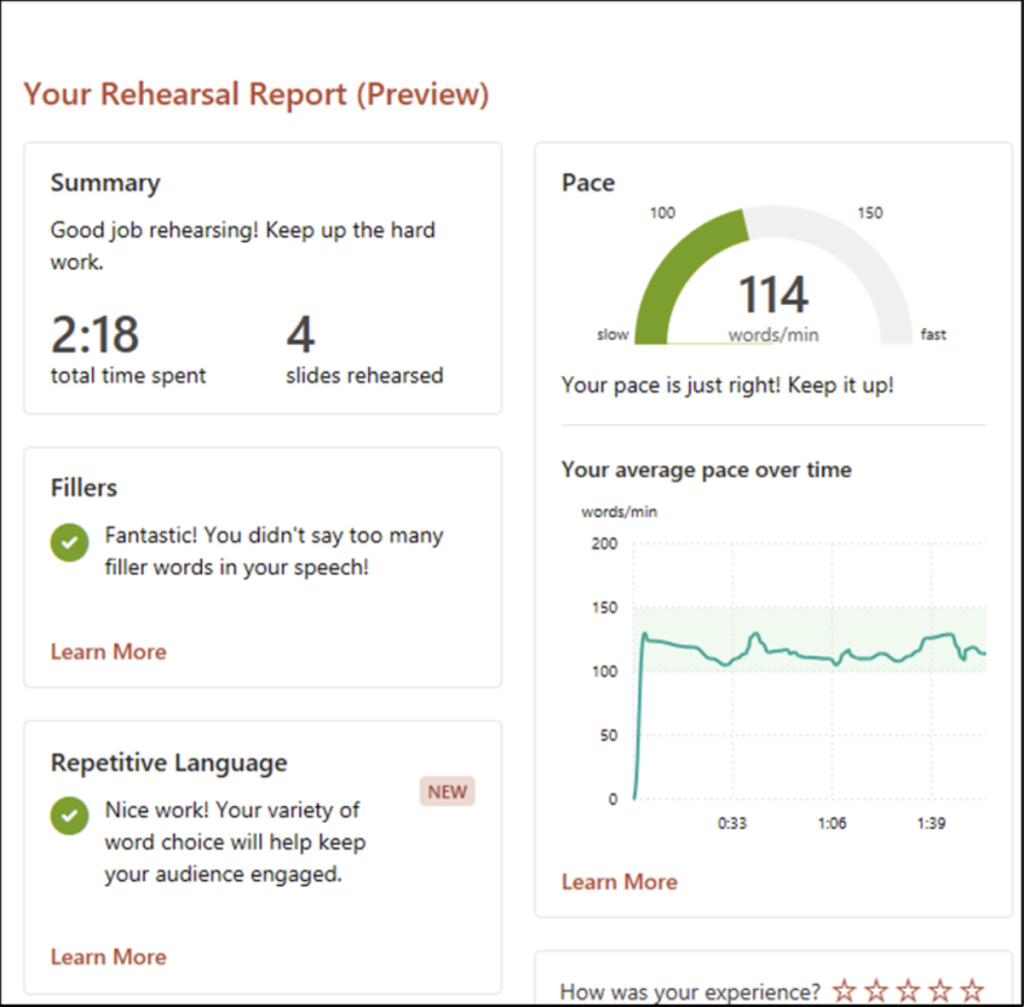
Rehearsal report from PowerPoint’s Rehearse with Coach
In the web version of PowerPoint, there’s a new feature – Body Language – that gives feedback on exactly that! It uses your camera and assesses your distance from the camera and where your gaze is, to help you ensure the audience has a clear view of your face.
The report opens in a new window. It cannot be saved, but you can scroll through it to see the full details and take a screenshot, like the example above. You’ll find Rehearse with Coach on the Slide Show tab.
Subtitles and Translate
This is my personal favourite, and I love showing this during training sessions when I have trainees who speak another language. PowerPoint uses AI to listen to the words spoken and either subtitle them live on a slide show or translate them into another language. Firstly, you must choose the spoken language. There are three options for English – Canada, United Kingdom, and United States – then select the subtitle language. If you want to display the spoken language to help people with hearing disabilities, choose English. At the time of authoring this article, there were over sixty languages from Afrikaans to Yucatec Maya! There are ten preview languages – meaning they may have lower accuracy, which will improve over time. Irish is currently a preview language. I have demonstrated this feature with Afrikaans, Filipino, French, Irish and Spanish, and my audience has been suitably impressed! My advice if using this feature is to use the Above Slide setting for the subtitles, so that people can read them easily, and you’re not obscuring part of your slide. You can access the Subtitles settings from the Slide Show tab and the Presenter View while presenting.
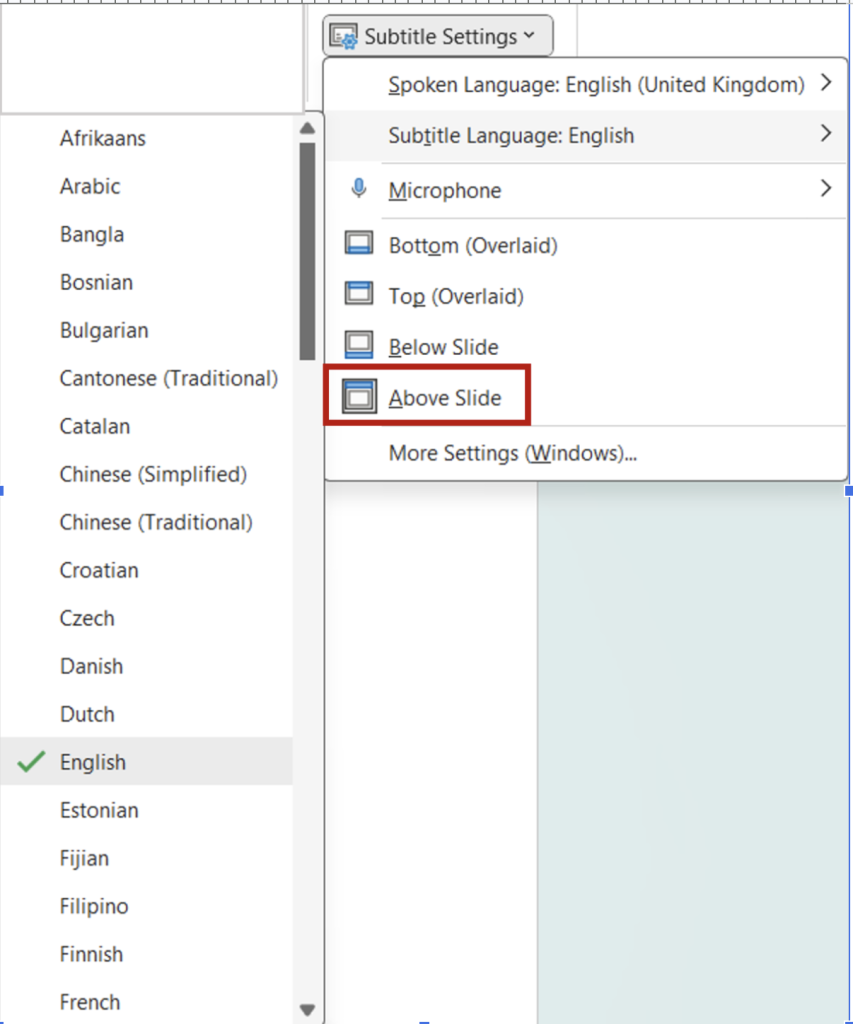
Subtitle Settings in PowerPoint
You can access subtitles and translation settings from the Slide Show tab and from the Presenter View while you are presenting. If you want a more in-depth overview, please read my previous newsletter:
How to add live subtitles and live translation in PowerPoint
Copilot
Copilot is a paid add-on to Microsoft 365, with licence costs varying from €30 to €45
per person per month, depending on where you buy your licence. Copilot is the
Microsoft AI assistant, and it offers lots of features
- Summarising a long slide deck
- Creating a deck from a Word document
- Creating a deck from a prompt, pulling info from the internet, or from internal files
- Creating images to use in your slides – I used Copilot to create the image for this newsletter!
As with all AI tools, it is your responsibility to fact-check everything. I recently asked Copilot to generate a summary of my business from my website, and it made up a landline number that didn’t exist! The key to using Copilot with PowerPoint is to master the art of prompt writing. Make sure you include the following.
- Goal – what do you want from Copilot?
- Context – why do you need it and who is involved?
- Source – what information or sample do you want Copilot to use?
- Expectations – how should Copilot respond to best fulfil your request?
For example, I want a 10-slide deck for a keynote presentation to senior leaders in the Biotech industry to encourage direct foreign investment in Ireland, using modern images from the Biotech industry.
Take a look at my YouTube video on how to create a PowerPoint presentation from a Word document below.
If you are not familiar with these tools, I suggest you try them out and get started with AI tools in PowerPoint!
Thank you for reading this article. I’d love to know which PowerPoint AI tools you already use, and if you need assistance with PowerPoint training for your team, please get in touch via my Microsoft bookings page.