

A theme in PowerPoint is a predefined set of colours, fonts and visual effects that can be
saved and applied to other PowerPoint files for a consistent on-brand look and feel. The
theme is linked to your organisation’s PowerPoint template. When you add content to your
slides, for example, shapes, tables, charts or SmartArt, the theme colours will be applied.
There are six accent colours in PowerPoint, and these are seen everywhere there is a
possibility to change an object’s colour. When you click on the colour drop-down menu for an
object, you will see the theme colours. The colour theme also includes two light and dark
options that dictate the text colour compared to the background colour. If your slide uses
dark 1 as the background colour, the text will be light 1 to ensure enough contrast to read the
text.
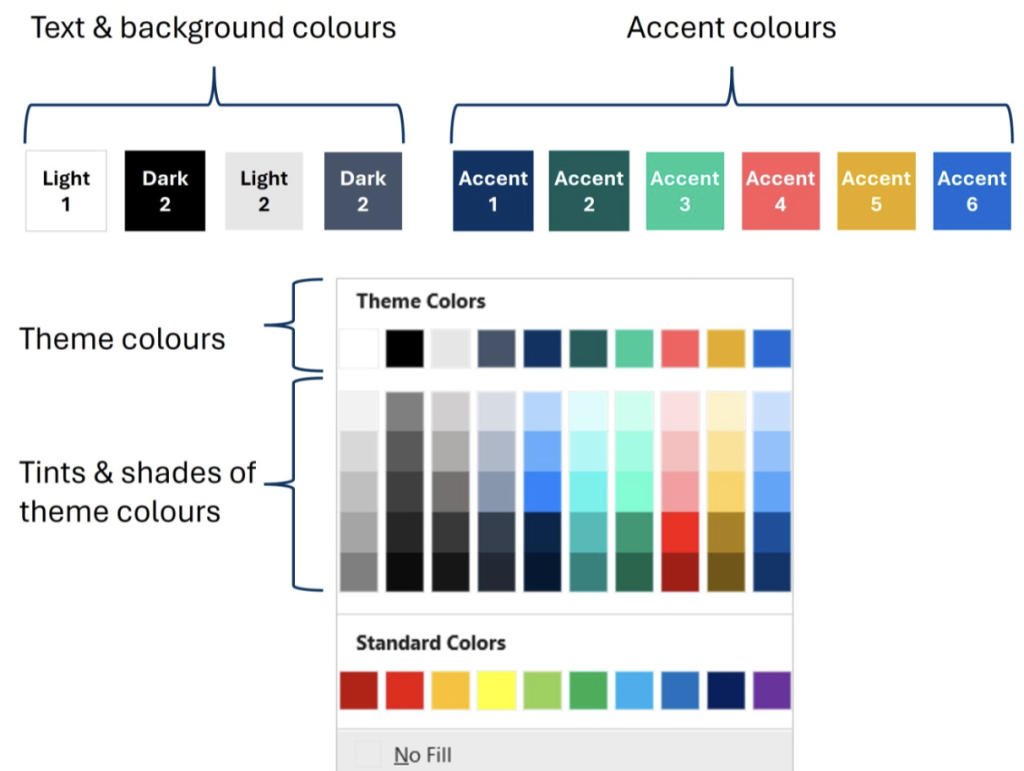
Theme colours explanation
When creating a presentation, always use theme colours because this makes it very easy to
change the look and feel of your presentation. Standard colours should only be used for
items that should be a specific colour, for example, a hazard symbol. It makes no sense to
have a hazard symbol in brand colours!

Hazard symbols are an example of where not to use brand colours!
There is a possibility to save the theme colours and to save the entire theme. The theme
colours can be applied to other 365 files, for example, an Excel file, to ensure brand
consistency across your documents. If you were to apply the theme to an Excel file, in
addition to your colours, the file will also pick up the theme fonts, which may not be easy to
read in Excel.
In this article, we will explore how to save theme colours and apply them to a Word and
Excel file to ensure your documents are on brand.
To save your brand colours, open your template, or a file created with your template, and
click on the Design tab. Click on the Variants drop-down menu, over to the right-hand side of
the ribbon.
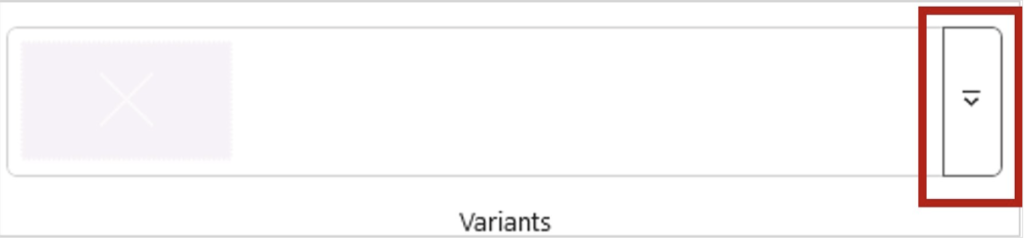
The Variants drop-down menu in PowerPoint
Hover your mouse over Colours, and the Office colour themes are shown. This is a list of
default Microsoft colour themes. You can apply any of these colour themes to your entire presentation or to just one slide. If you click on a colour theme, it is applied to all slides. However, if you right-click, there is an option to apply the theme colour to just that slide.
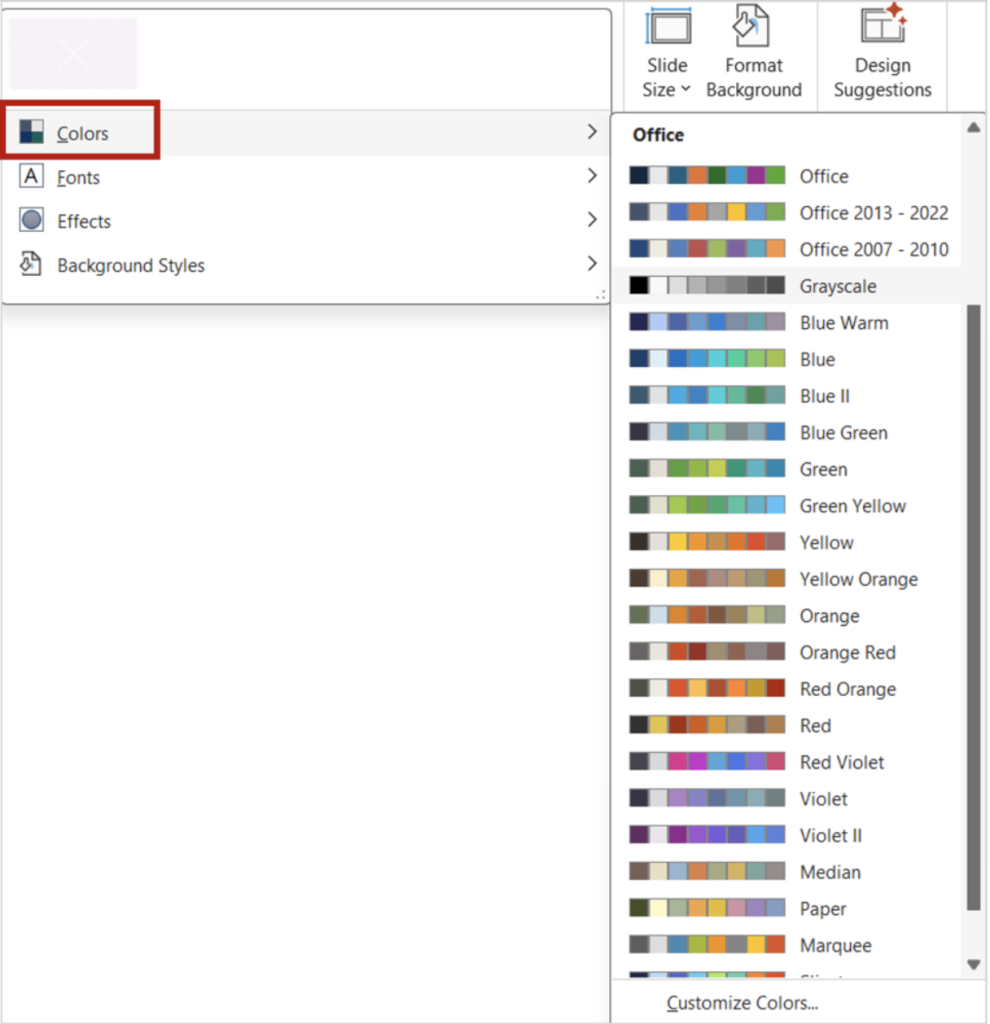
Standard colour themes in PowerPoint
We want to save your organisation’s colours so that they can be applied to other files. Click
on Customise Colours at the bottom of the list of theme colours. The Create New Theme
Colours window will open. As we are saving the colours from our organisation’s template, we
don’t need to edit any of the colours. In the Name field, type in the name of this colour theme
– you may have several templates within your organisation, so make sure the name reflects
the colour theme – and then click Save.
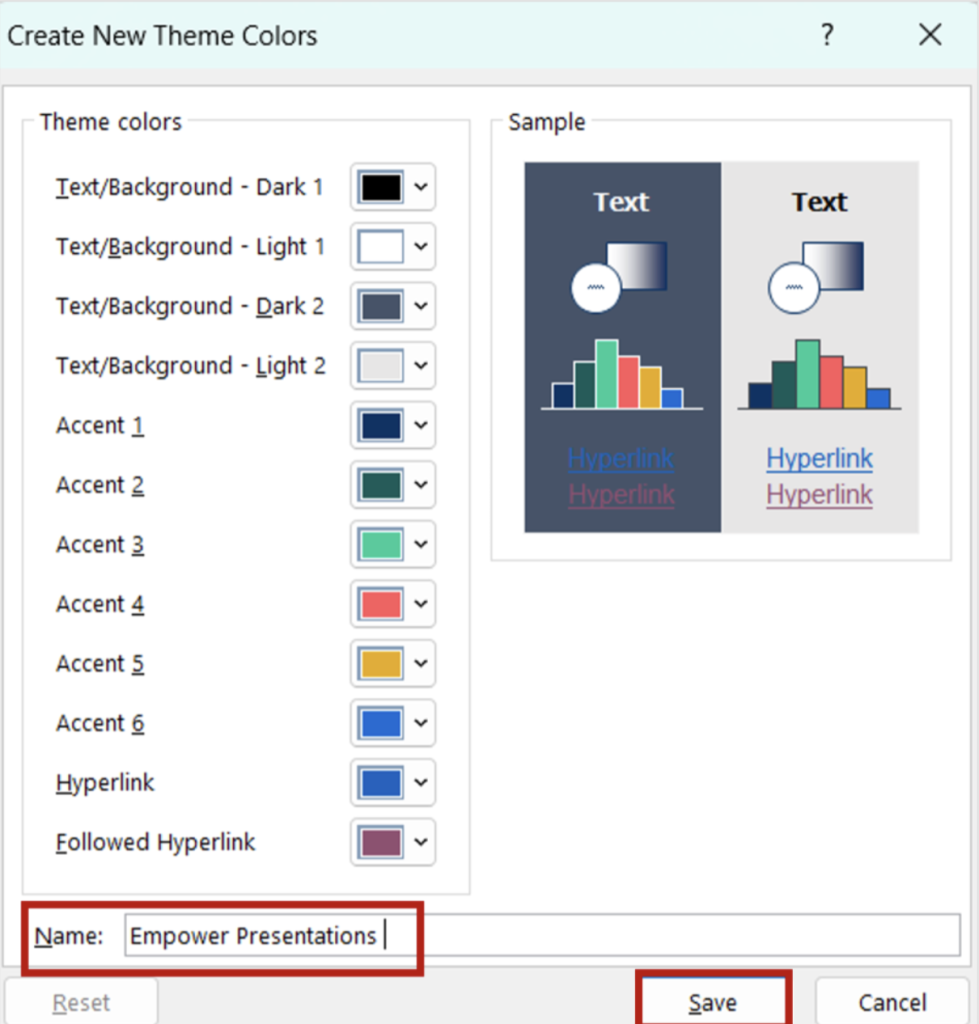
The Create New Theme Colours window
To check that the colour theme has saved correctly, click on the Variants drop-down menu
again and click on Colours. Your theme is shown at the top under Custom.
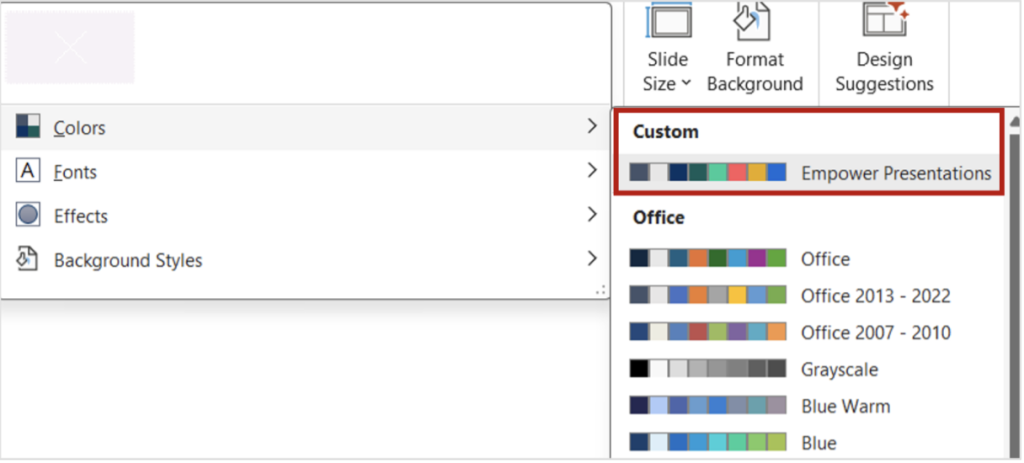
Custom theme in PowerPoint
Now that the colour theme is saved, let’s apply it to an Excel file. Open your Excel file and
click on the Page Layout tab. Click on the Colours drop-down menu on the left-hand side of
the ribbon. Under Custom, you will see your colour theme. Click the theme to apply it to your
file.
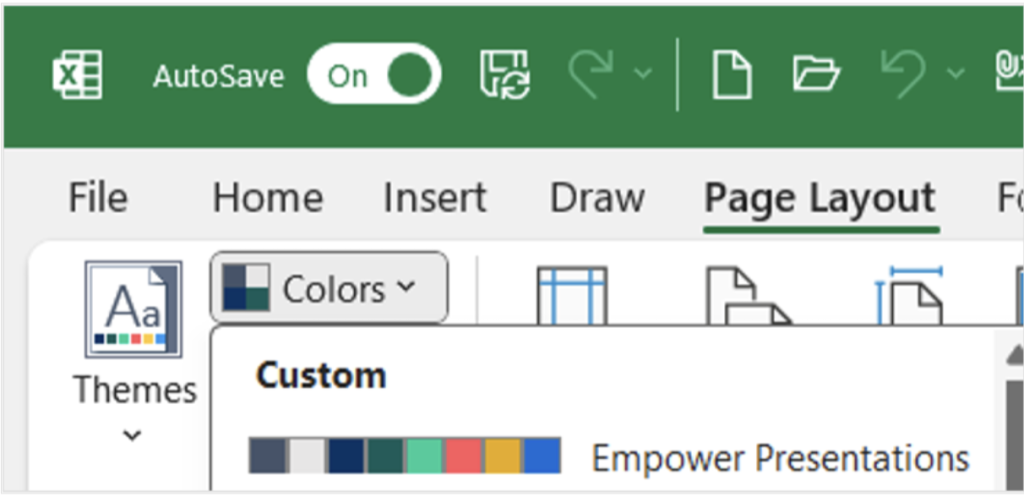
Custom colour theme in Excel
Here is an example of an Excel chart with my colour theme applied.
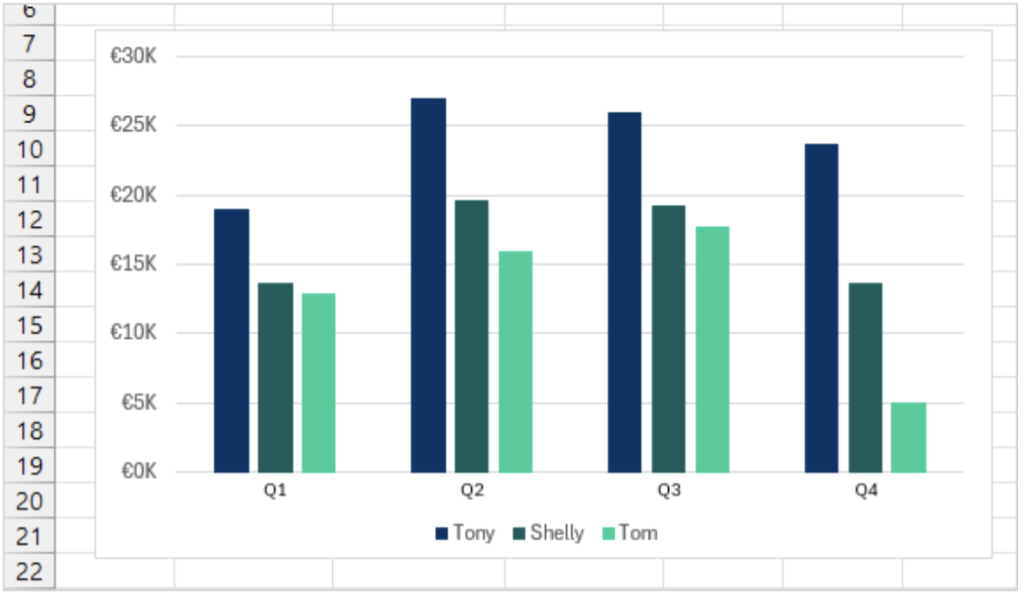
Excel chart with theme colours applied
In Word, go to the Design Tab and click on the Colour drop-down menu, over to the right-
hand side. Under Custom, you will see your Colour Theme. Click the theme to apply it to
your file.
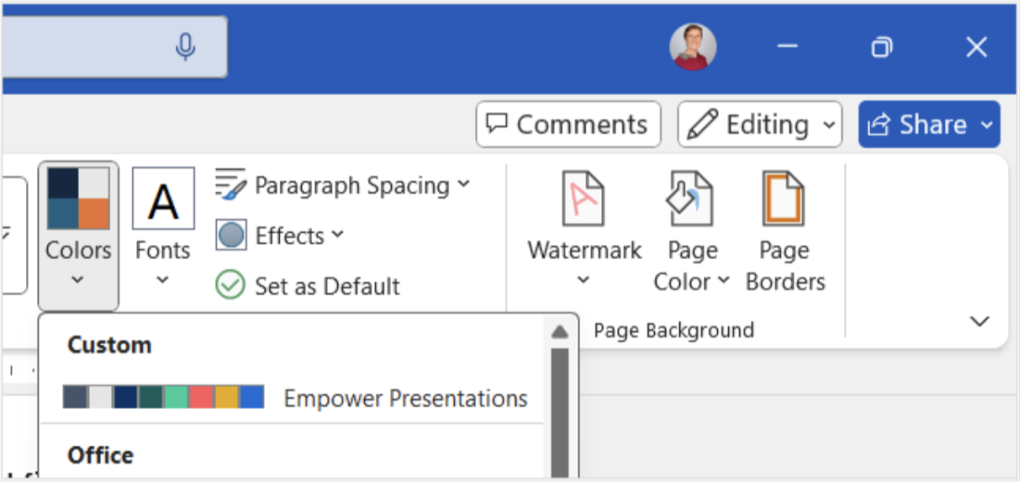
Custom colour theme in Word
Here is an example of a Word template with my colour theme applied.
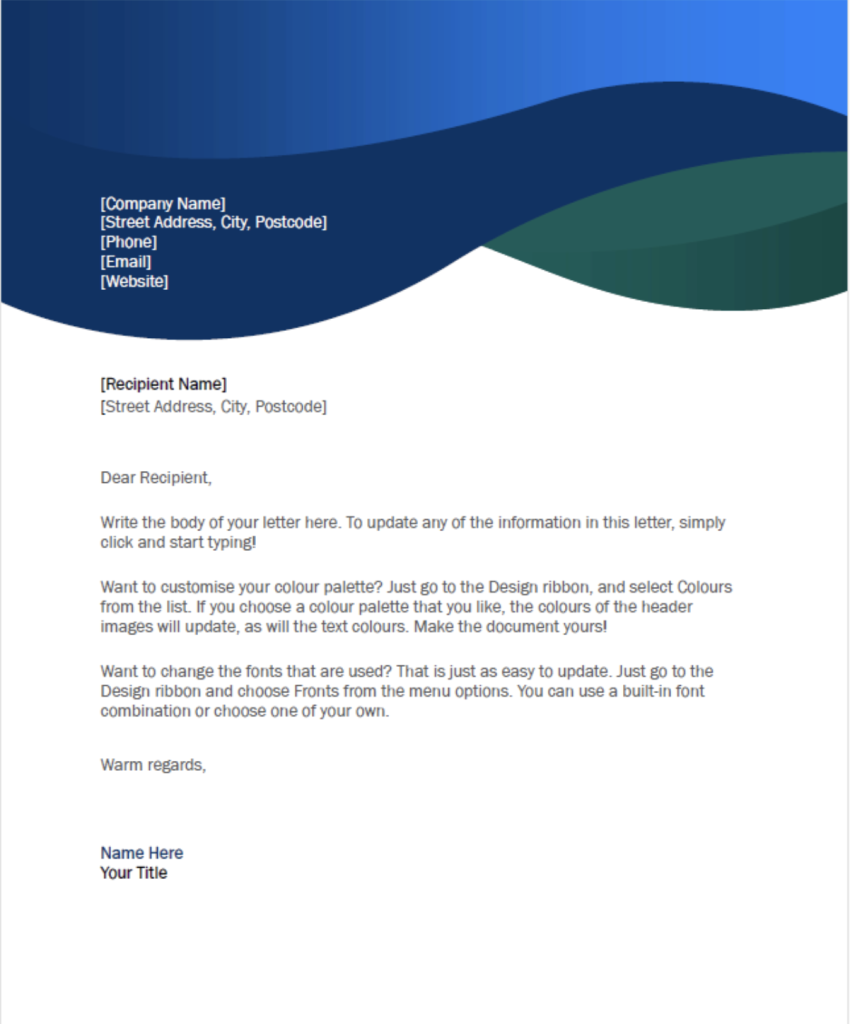
Word template with colour theme applied
Here’s a video showing you how to add your colour palette and theme in PowerPoint and
apply it to other documents:
Thank you for reading this article. I’d love to know if you have saved your colour theme already, and if you need assistance with PowerPoint training for your team, please get in touch via my Microsoft bookings page: