

In today’s busy world, efficiency and productivity are key. Microsoft 365’s Copilot in PowerPoint is here to help you achieve just that with its powerful features for PowerPoint. While I think there is some way to go before Copilot can create fit-for-purpose slides, it certainly offers a very good starting point. Let’s take a look at how to make the most of Copilot with PowerPoint for 365. GHVHVDN4526780
Summarise a Presentation
Ever received a lengthy slide deck and needed to quickly understand its content? Copilot in PowerPoint’s got you covered! Just click on the Copilot button in the Home tab, select Understand and Summarise this presentation, and let Copilot do the rest. It provides an overview of the slides, including key sections like the introduction and conclusion. This feature is a game-changer for anyone who needs to grasp the gist of a presentation without going through every slide. Here’s a video showing you how to use this feature:
Summarise a Presentation Video
Show Key Slides
In addition to summarising presentations, Copilot can also highlight the key slides in a deck. By selecting the prompt Understand, Show key slides in this deck, and clicking the Send button, Copilot identifies the most important slides for you. This feature is particularly useful when dealing with large presentations, as it allows you to focus on the most critical information without getting overwhelmed by the number of slides. Here’s a video to show you how to show the key slides:
Create from File
Need to create a PowerPoint presentation from a Word document? Click on the Copilot button and select Create a presentation from file. Copilot will generate a slide deck with summaries, introductions, scope, findings, discussions, conclusions, and recommendations. Earlier in the year, this feature was available for a file saved on One Drive, but at the time of writing, the Word document used to create the deck must be saved on SharePoint. Seeing as this technology is constantly being updated, this could change again in the future. When Copilot creates a deck from file, it adds text to slides, pulls appropriate images from Microsoft Stock Images and adds speaker notes. It’s your job to check over the content to ensure it is fit for purpose!
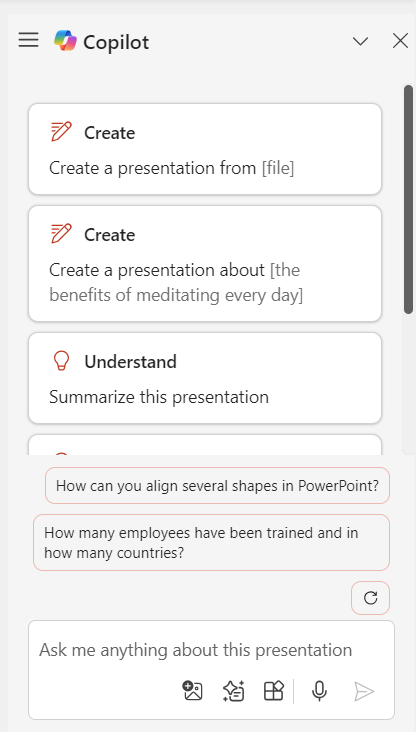
Copilot sidebar, showing the Create Presentation from File as the top prompt
Copilot with Designer
Once you have a presentation created by Copilot, the next step is to make it your own. The Designer feature allows you to edit your slides. By clicking on the Designer button, you can choose various design ideas and layouts to improve how your slides look. You can use Designer with any slides, not only the ones created by Copilot. Here’s a short video showing you how:
Designer Images and Cropping
After choosing a layout from Designer you can edit the images to choose which part of the image is shown on the slide. Select an image and click on the Crop button on the Picture Format tab. You can zoom in or move the image around within the placeholder suggested by Designer. This allows you to customise the appearance of your slides and ensure that images are presented in the best possible way. Here’s another short video to show you how to edit images in PowerPoint:
With these features, Copilot in PowerPoint 365 can help you summarise and highlight key slides when you are sent a presentation after a meeting or event, or when creating presentations from files. Copilot is here to help you work smarter, not harder.
With that said, I cannot stress enough that when working with Copilot, you are the Pilot, which means you are ultimately responsible for the content in your slides and in making sure your slides are fit for purpose.
Thank you for reading this article. If you have any questions or need further assistance, feel free to reach out. You can get in touch, via my Microsoft bookings page:
Book time with Fiona Walsh: Discovery Call
Happy presenting!