


Heat maps are a powerful way to visualise data, using colour intensity to represent
different values. Whether you’re highlighting population density, sales performance,
or survey results, a heat map can make your insights instantly clear.
What is a Heat Map?
A heat map uses varying shades of colour to show differences in data. For example,
on a map of Ireland, Dublin appears in a darker shade, indicating a higher population
compared to other counties. Similarly, a map of Europe might show Germany as the
darkest area, reflecting its population size. On a global scale, countries like India and
China stand out with the deepest colours, representing their status as the most
densely populated nations. Lighter shades indicate lower values, while darker
shades highlight the highest figures.

Choose Map on the Insert Chart Window
Step-by-Step: Creating Your Own Heat Map
- Start with a Title Slide – Begin with a title-only slide layout in PowerPoint
- Insert a Map Chart – Go to the ‘Insert’ tab, select ‘Chart’, and then choose
‘Map’. Click ‘OK’ to add a map chart to your slide. PowerPoint will insert a
chart with some sample data. Choose Map on the Insert Chart Window - Prepare Your Data – Have your data ready to paste into the chart’s data
window. For example, if you’re mapping Irish counties by population, ensure
your list is complete and formatted correctly. Note: In Ireland, administrative
divisions are by county, which works well for mapping. However, provinces do
not work in PowerPoint’s map feature. For the UK, you can map the country
as a whole, but not individual nations like England, Scotland, Wales, or
Northern Ireland. - Paste and Adjust Your Data – Paste your data into the chart’s data window. If
some areas appear grey (not coloured), it means PowerPoint hasn’t
recognised them. To fix this, right-click the chart and select ‘Select Data’.
Adjust the data range to include all relevant rows, then confirm your selection.
This should ensure all your regions are represented with the correct colours.
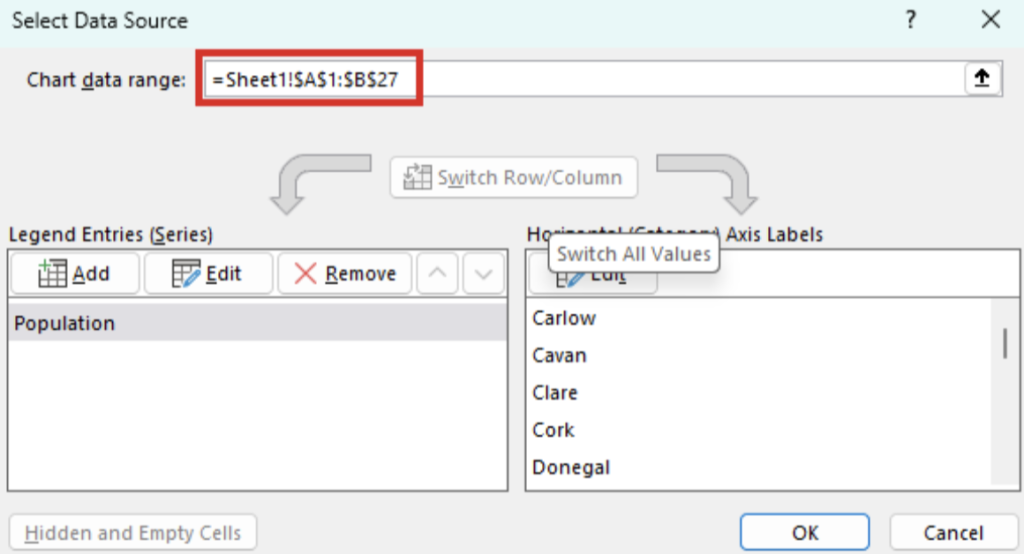
Change the data range in the Select Data Source Window
- Finalise and Customise – Once your data is correctly displayed, close the
data window. You can now format your map, choose another map colour, and
add titles or labels as needed.

Change the colours on the Chart Design tab, Change Colours drop-down menu
If you would like a demonstration, here’s a YouTube video to walk you through the
steps to create your own Heat Map.
Need Help Training Your Team?
If you’d like support with Microsoft Office training, please reach out via my Microsoft
Bookings page to arrange a chat.
Book time with Fiona Walsh: Discovery Call
Thank you for reading this article. I’d love to know what kind of data you’d use a heat
map for?