

I’ve always used PowerPoint for my social media posts, from YouTube thumbnails to LinkedIn banners and everything in between. It was a bit tricky getting the sizes right, but once I did, I saved the file as a template for next time. If you didn’t know, you can change the slide size manually. To do this, go to the Design tab and click on the Slide Size button on the right-hand side of the Ribbon. Here you’ll see the option to change from Widescreen (16:9) to Standard (4:3), and if you click Custom Slide Size, the Slide Size window will open, allowing you to access more pre-defined sizes from the drop-down menu, or to create your own slide size.
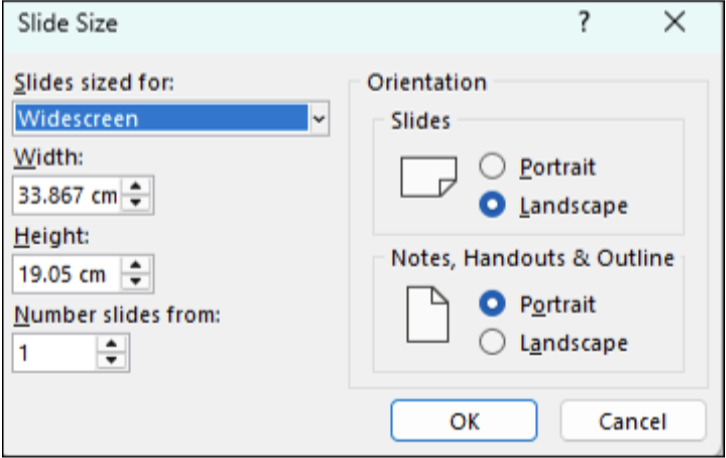
The Custom Slide Size window
But things just got a lot easier with a new add-in called Social Media Canvas from BrightCarbon. You can download and install the free version of this add-in here. Once installed, you have access to predefined slide sizes for various social media platforms, from Instagram to X (Twitter) and, of course, my favourite LinkedIn.
Once you’ve installed the add-in, go to the File tab and click on Social Media. Then choose your social media platform and click on the dropdown menu to choose the canvas type and click on Create New File.
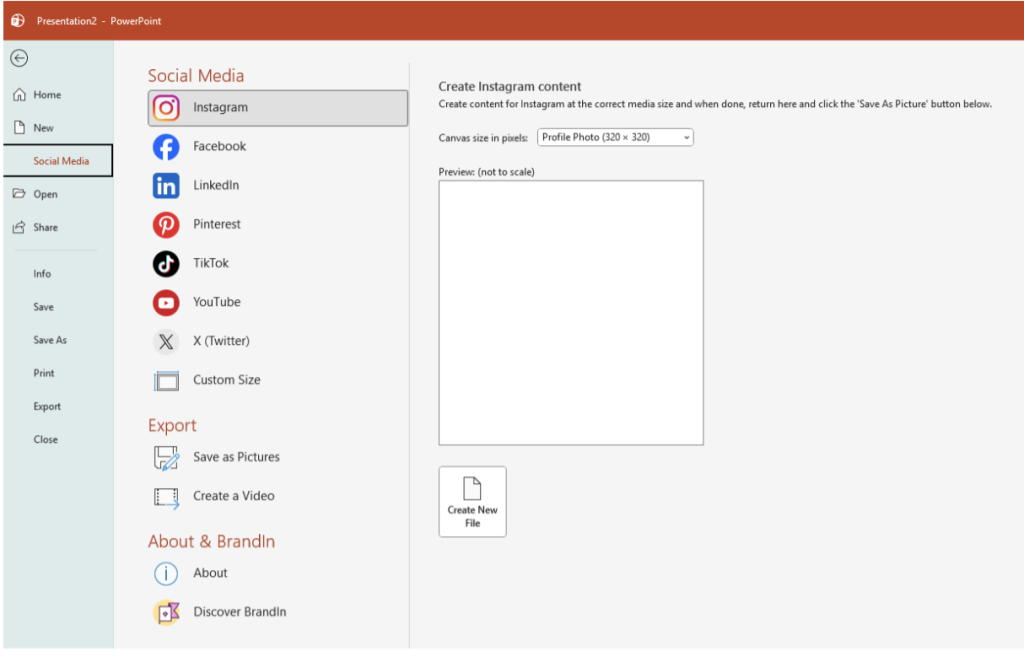
The new Social Media Canvas add-in from BrightCarbon
A new file will be created for that size post. Now design your social media content, and when finished, go back to the File tab, and under Export, you will see Save as Pictures.
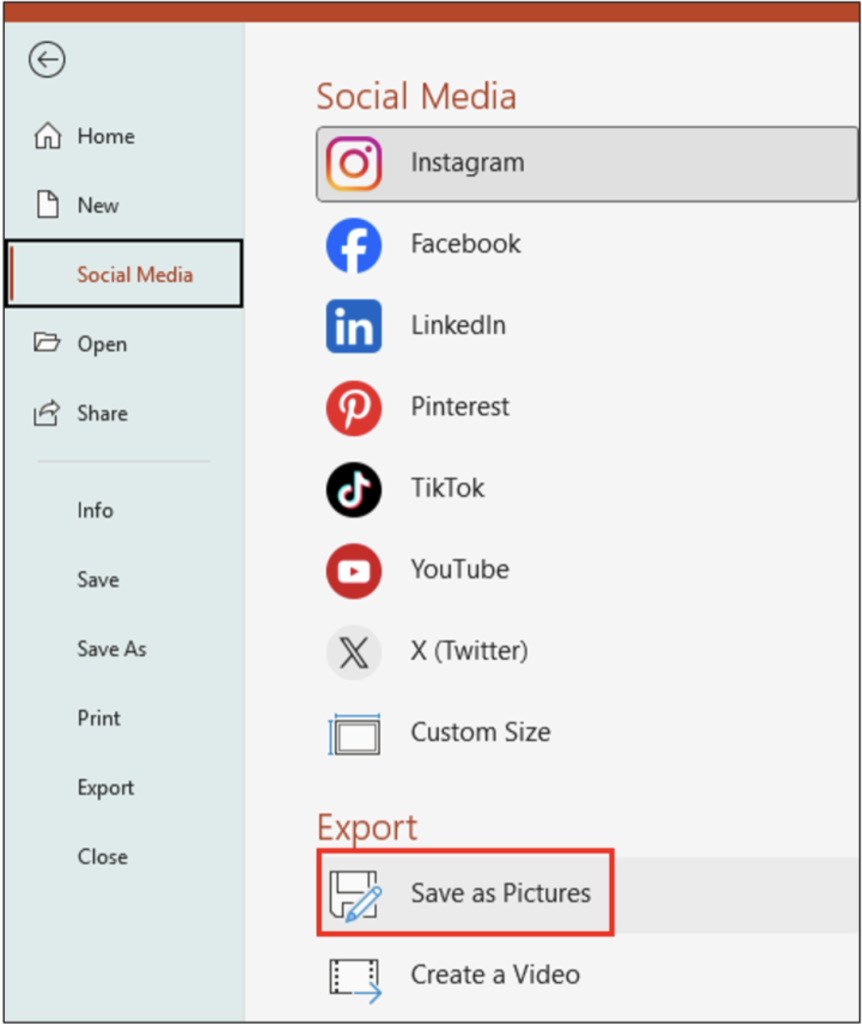
Social Media Canvas – Export, Save as Pictures
You will also see the Social Media Canvas on the Design tab, over to the far right of the Ribbon. Click on the drop-down menu to see the list of social media options, and hover over the one you want to see the sizes for that specific platform.
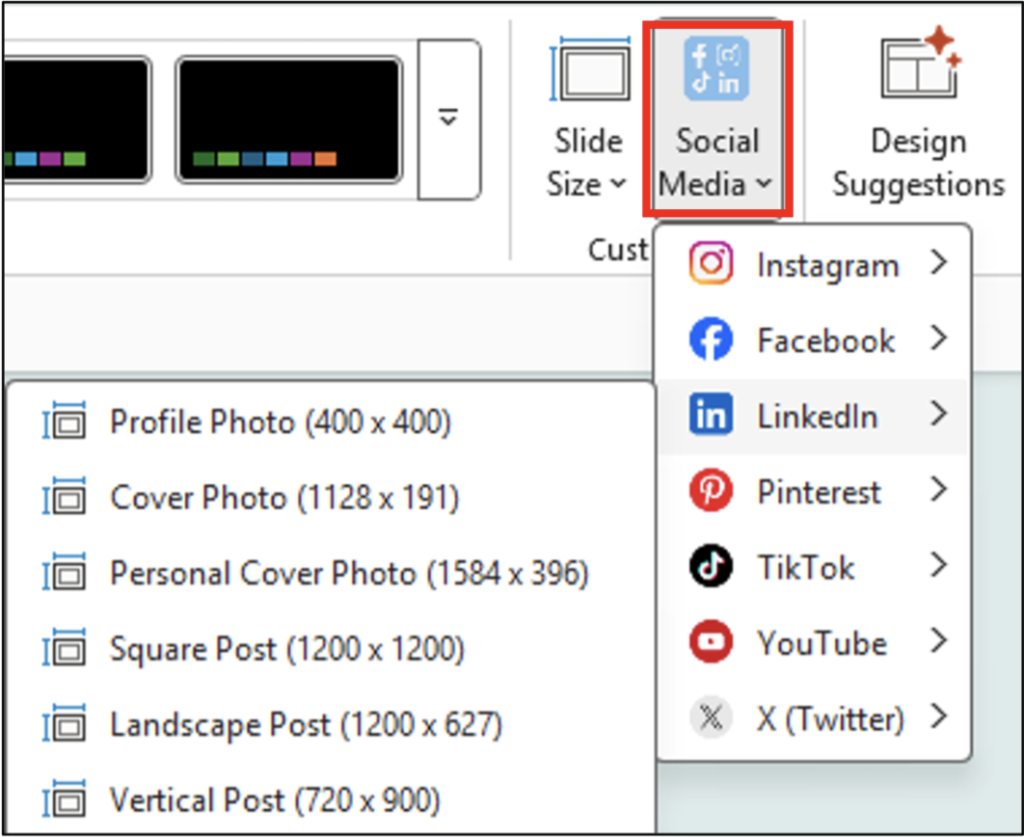
The Social Media Canvas add-in is on the Design tab
If you would like a demonstration, here’s a YouTube video showing you how to use Social Media Canvas.
How to create social media posts in PowerPoint
Need Help Training Your Team?
If you’d like support with Microsoft Office training, please reach out via my Microsoft Bookings page to arrange a chat.
Book time with Fiona Walsh: Discovery Call
Thank you for reading this article. I’d love to know if you use PowerPoint for social media posts, and if you do, will this make your life easier?